 XOSystem
| XOSIDE
XOSystem
| XOSIDE
Modular Workspace.
Hierarchical tree, Code Editor, and Property Inspector
XOSIDE's development environment is designed around the developer's workflow.
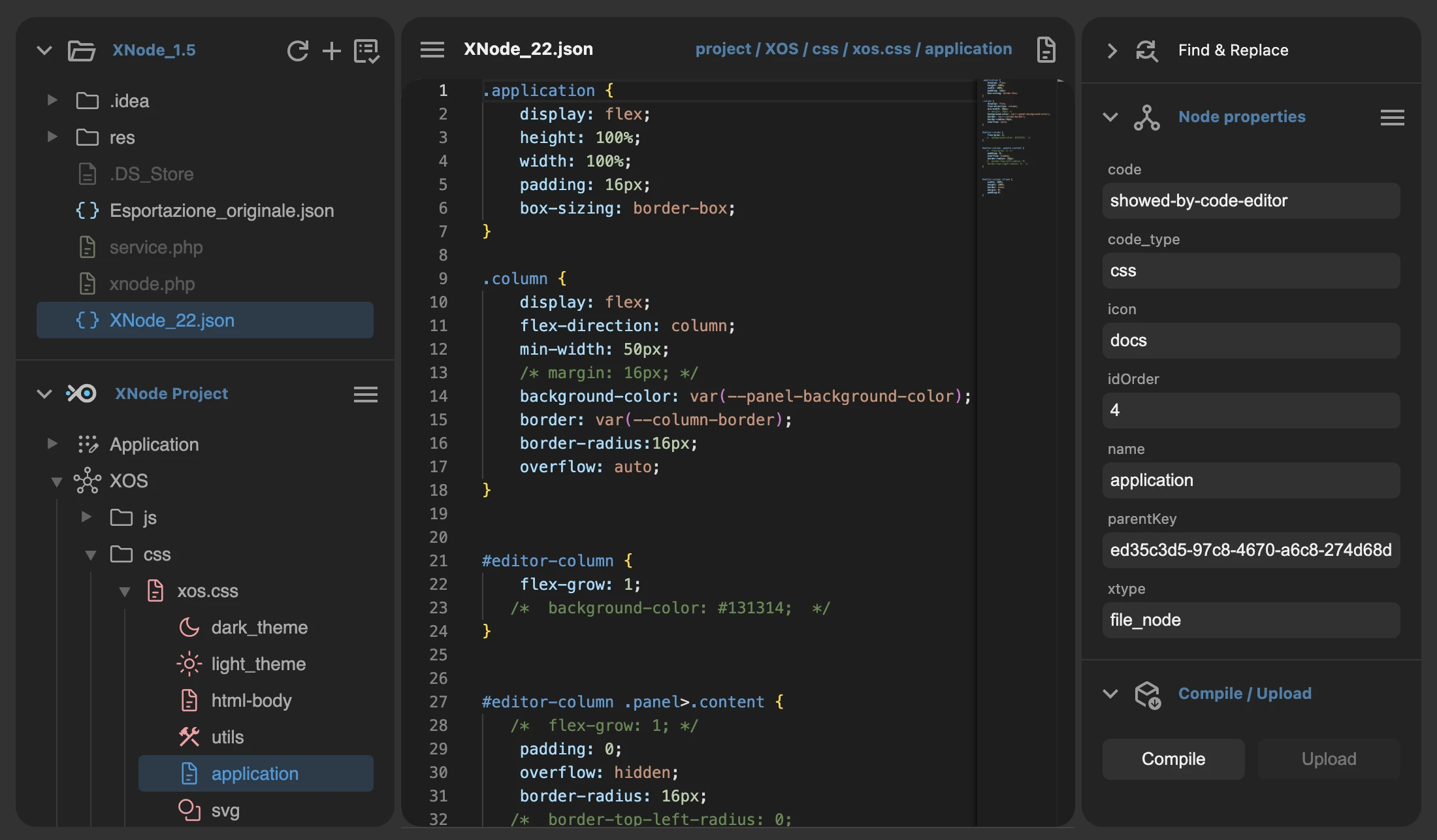
The space is divided into 3 resizable columns containing different panels.
The main panels show the context of the selected node: the node within the project, the node's code, and its metadata (properties).
account_tree
Exploration and Resources
This is the section dedicated to structural navigation and starting blocks. It's divided into three core panels:
1. The Local File System: Shows the physical folder of your project on disk. This is where the historical versions of your work and the application's compiled files reside.
2. The Project Tree (Document Treeview): The logical map of the active project. Here you explore the hierarchy, the parent-child relationships, and select individual nodes to manage their content.
3. The Library Panel: Your toolbox. It contains predefined base nodes and ready-made components, usable as a starting template or to be grafted into an existing project.
code
The Heart of the Code
The central column is entirely dedicated to writing and producing logic. Monaco Editor Core:
The enterprise-grade editing engine (the same one behind VS Code), focused on the node you've selected in the tree. It shows and lets you edit the pure source code in an isolated environment, with native syntax highlighting and autocompletion.
On the left of the panel header is the name of the currently open project and the "File" menu, while on the right is the absolute path and the icon of the selected node being edited.
deployed_code_update
Control, Inspection, and Deploy
The operational center for metadata configuration, maintenance, and distribution.
1. Refactor Panel (Find and Replace): The tool for performing bulk searches and quick replacements of strings or variables within the logical structure of your code.
2. Property Inspector: The dynamic interface that reads and lets you alter the selected node's "DNA," modifying parameters, keys, and environment configurations without touching the source code.
3. Compile and Upload Panel: The command bridge to production. From here you can selectively compile only the modified file-type nodes, or regenerate the entire project. It also manages communication with the server to instantly upload the ready files.